In which we make a stunning new website
Create the site #
You need to install Hugo first.
I’m on a Mac and find brew install hugo to be the easiest way.
Create the new site. I prefer YAML to TOML so let’s have the front matter in content be YAML format:
| |
That runs the server. Nothing to see yet at https://localhost:1313 because there’s no content.
| |
That
publicdirectory is where the generated site is stored. If you’re using git thenecho "public/" >> .gitignoreavoids putting generated content into the repo.
Create a basic page layout #
Let’s create the most basic layout for lists of content:
| |
These files are Go HTML templates, meaning they’re basically whatever text file content you need, with a little sprinkling of Go templating. Hugo looks for templates in a specific order in the layouts directory.
Put this into layouts/baseof.html:
| |
If you’re using an IDE make sure that it knows how to save Go HTML templates without screwing up the syntax of this mixed-language file.
The bit in the double curly braces is a Go template describing a placeholder called main that another template can inject content into.
Home page #
Hugo has a layout system where it matches the type of content you write based on it’s name and directory within the content directory.
_index.md is one of those special files: it’s like a home page for the directory, and the _index.md file in the root of the content directory is the home page for the whole Hugo site.
Let’s create it:
| |
hugo new /path/to/file.md is how you create content in Hugo.
Hugo will always put new content in the content directory, so you don’t include the content directory name in the command like hugo new content/_index.md.
Let’s update the new content/_index.md file you just created.
Because this is at the root of the content directory, this is the home page for the whole site.
- Change the
titlefront matter toHello World - Add the text
This is the home pageat the bottom of the file. That’s just plain markdown.
If you’re watching the Hugo server output or trying to view that home page, you’ll be disappointed. We need to tell Hugo how to render that new content.
Provide a template for Index files #
When Hugo sees a file called _index.md anywhere in the content directory it immediately looks in layouts directory for a template to render that index file.
The convention has changed over time, but as of the time of writing, this is a file called home.html.
| |
Put the following content into layouts/home.html:
| |
Again this is a Go template so it’s got a little HTML (<h1>) and some Go code.
See the define "main"?
That’s where we’re injecting our content and it matches the block "main" that we put in our layouts/baseof.html template!
Don’t forget the close
endstatement at the bottom. Super easy to miss that!
Now you should be able to navigate to the home page, typically at http://localhost:1313.
To recap:
- Hugo looks for content in the
contentdirectory. - Hugo knows that
_index.mdfiles are special. They’re home pages for content directories. - Hugo needs default
layoutsthat have a mix of HTML and Go code. - Hugo uses some naming conventions to find the right template for the right content.
For example, the
layouts/home.htmltemplate is used for any_index.mdfile. - The
baseof.htmltemplate is a special template that defines the overall structure of every page in the site, and the placeholdermainis used to tell Hugo how to wire - You can create content by just creating files, but it’s easiest to use the
hugo newcommand to do it for you.
Archetypes and Handy Parameters #
Each type of content in Hugo has an archetype.
You might have an archetype for blog posts, and another archetype for marketing pages, and so on.
You control the default data and structure of an archetype by adding a file in the archetypes directory that has the same name as the folder holding your content.
For example, if you want special control over the front matter or some default values for all content in a content/blog folder, you can create an archetypes/blog.md file.
The name is the key, so the matching archetype file for content/posts is archetypes/posts.md: the plural of the folder name is significant.
As with all things, Hubo has a default for archetypes: that’s the default.md file in the archetypes directory.
Default Archetype and Front matter #
Open archetypes/default.md and examine the Front Matter (YAML between matching --- lines.
The default YAML front matter looks something like this:
| |
Let’s adjust the front matter that will be used for all new content.
Add a new parameter called summary and remove the author parameter:
| |
The weird |- is just a way to let you type multi-line text in a YAML file without messing about with \n new lines.
The
draft: trueparameter means that if you publish this Hugo site, the content will not be visible. That’s why we used the-Dflag when runninghugo server: it tells the server to build and preview drafts as well. Try starting the thehugo servewithout the-Dflag and you won’t see much right now ;-)
Create a Blog Post #
Alright, we’ve tweaked our default archetype file so it’s time to create out first blog post!
- We’ll create content in a directory called
content/posts. - We’re not going to create an
archetypes/posts.mdfile so content in thecontent/postsdirectory will use thearchetypes/default.mdfile.
| |
If you still have the hugo server -D running you’ll see it rebuild the site to include your new post:
| |
But wait! If you try to open the post post at http://localhost:1313/posts/my-first-post/, Hugo will complain:
| |
Just like the layouts/index.html-to-content/_index.md mapping renders our home pages, Hugo needs a similar match for what are called single pages.
List Page and Single Page Templates #
Let’s create default templates for single and listing style pages:
| |
Update the layouts/page.html template:
| |
The page.html template is used for any page in the content directory that is not called _index.md.
Our file is called posts/my-first-post.md so Hugo will read it’s front matter and content and use the page.html template to create an HTML page with the URL /posts/my-first-post.
Now your first post will work in your browser!
Can you see where your summary front matter is rendering?
What about pages that list content?
If Hugo sees a file called _index.md a folder of content within the content directory, it will use the layouts/section.html template.
A Section in Hugo is just that: markdown files and maybe other content in a directory that has that index.md file.
Let’s edit our layouts/section.html template:
| |
This one is a little more involved.
We’ve got the same .Content placeholder so you know where the text from your _index.md file will be rendered.
It also includes a taste of how Hugo handles lists of pages and the metadata that it tracks for each bit of content.
That’s how we’ll produce a list of pageand also how range-ing of pages of content works, in this case to show links for older and newer posts (of which we have none, so far!).
Try browsing to https://localhost:1313/posts/ and you should see a listing page with a link to your post.
Adding Style with a Static Asset #
Hugo stores static assets in the assets directory and we’ll put our styles in there.
We could put them in the static directory and that’s a great place for files that don’t change.
However, Hugo has a little magic for working with assets that helps prevent stale assets in our live site.
| |
Put this into assets/css/site.css:
| |
We want to include the CSS in our layout, and we’ll use the Hugo fingerprint function to generate a unique URL for the file in the live site.
Update your layouts/baseof.html file to include the CSS somewhere in the <head> section.
| |
We see:
- How to get a pointer to an asset as a site resource
- How to declare and use a variable name
$siteCss - How to use the
fingerprintfunction to generate a unique URL for the file in the live site.
Go look in the public/css directory where Hugo is putting generated content and you’ll see the funky name for that file.
And then look at public/index.html and notice that Hugo is putting that same URL in the main website.
That’s how you avoid CSS getting stale in your live site.
Links and Partials #
We’ll finish our site by adding some links.
Ref #
Add the following to content/_index.md.
Again, this is your home page because it’s at the root of the content directory:
ref.txt
| |
Refresh your browser at http://localhost:1313/ to see the change: it’s a URL for the `content/posts section page! Now tweak that line to make it a markdown link:
link.txt
| |
Partials #
We want links to our home page and the posts section on all pages so we’ll create a navigation bar.
| |
Hugo looks for reusable snippets of content in the layouts/partials directory.
Put the following text in layouts/partials/nav.html:
| |
Then update layouts/baseof.html to include the navigation bar in the <body> tag before the <main> tag:
| |
It looks pretty weird so we’ll add some CSS in static/css/site.css:
| |
Hugo Configuration #
Open hugo.yaml:
| |
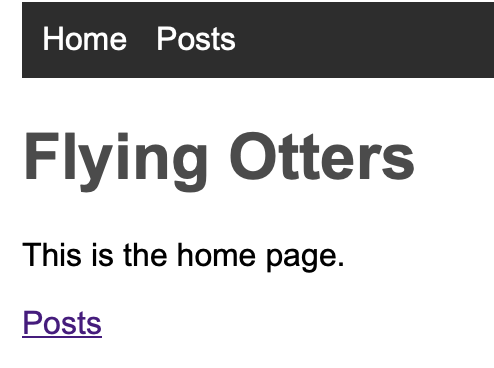
Update the title to Flying Otters.
Thanks to the .Site.Title in layouts/baseof.html, the new title will be displayed in the browser tab.
Change .Title to .Site.Title in your layouts/home.html and see Flying Otters appear on your home page.
Summary #
Hugo is a very powerful static site generator and the focus of this post is just covering that absolute basics of getting started.
The code for this website has evolved over time to include many features like shortcodes, taxonomies, diagramming, rendering pipeline tweaks, menus, RSS feels, and different content sections. Poke around and see what else you can do!